 mikoo
mikooGuides / 2026-09-08
How to change a product photo background with AI (and keep the product intact)
The three things people mean by "change the background", why cut-out tools and image generators each get one of them wrong, and what to type to get a clean white, a real scene or a flat ad ground without the product changing.
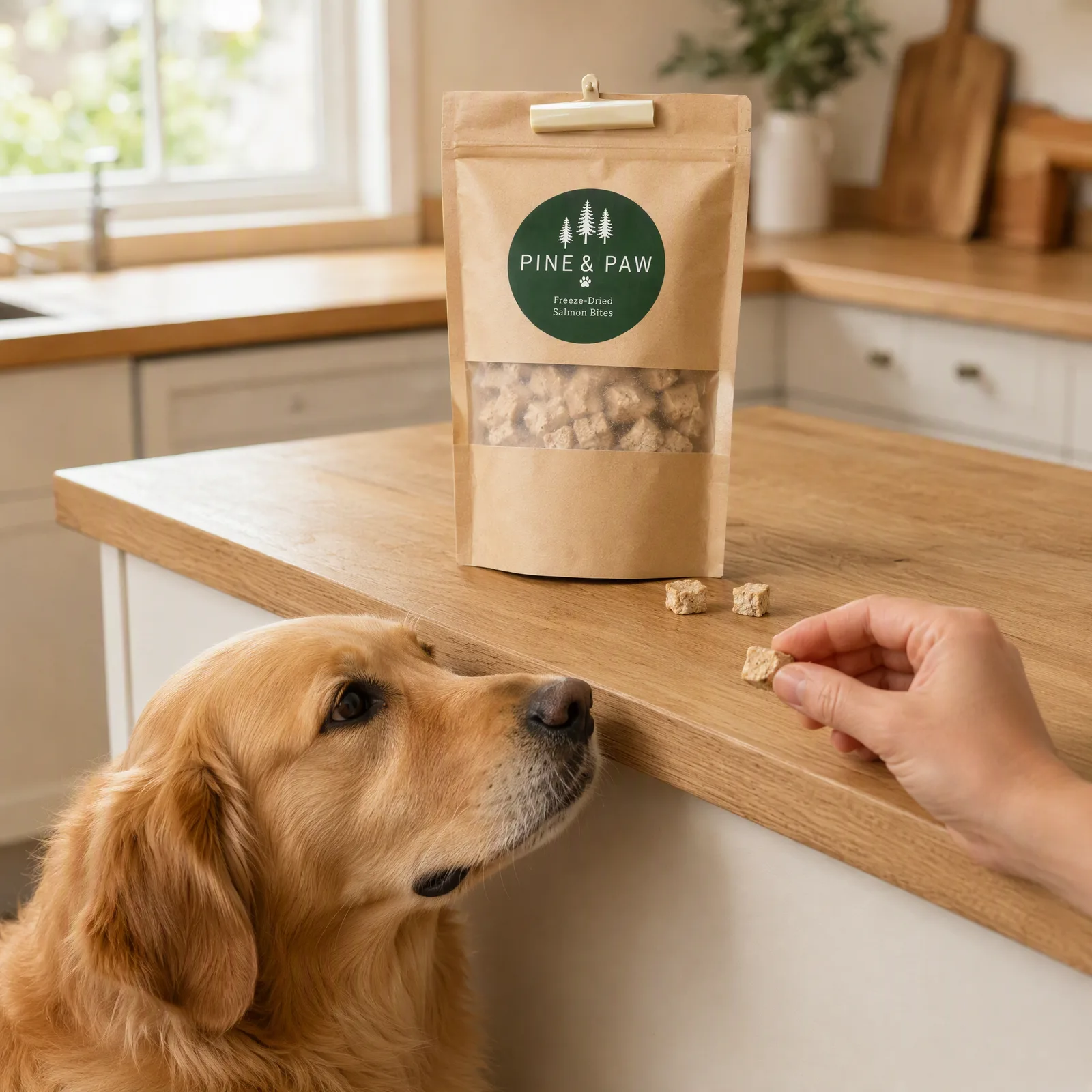
"Change the background" is three different jobs. The tool that does one well usually does the other two badly. Here is what each job is, where the usual tools fail, and what to type to get all three from one photo.
The three jobs
- A white cut-out. For Amazon, Etsy, Shopify heroes. Product on pure white, nothing else.
- A realistic scene. The product on a counter, a desk, a picnic blanket, with light that makes sense.
- A flat brand color. For a static ad: product on a solid ground with room for a headline.
Same source photo, three very different outputs.
Where the usual tools fail
Background removers cut the product out and drop it on a new ground. On a hard-edged box they are fine. On hair, fur, a dropper, a strap, the edge gets a halo, and the shadow that used to anchor the product is gone, so it floats. You end up painting a fake shadow by hand.
Image generators go the other way. Describe your product and a scene and they paint a beautiful scene with a product that is almost yours: label text drifts, the cap changes shape, the color shifts a step. For a lifestyle mood board that is fine. For a listing it is a returns problem.
What "product lock" means
In mikoo the product is generated against your photo, not described to a model in words. The label, the proportions, the finish come from the pixels you uploaded, and the scene is built around them. That is why the same bottle can sit on marble and on a vanity and be legibly the same bottle.
The flow
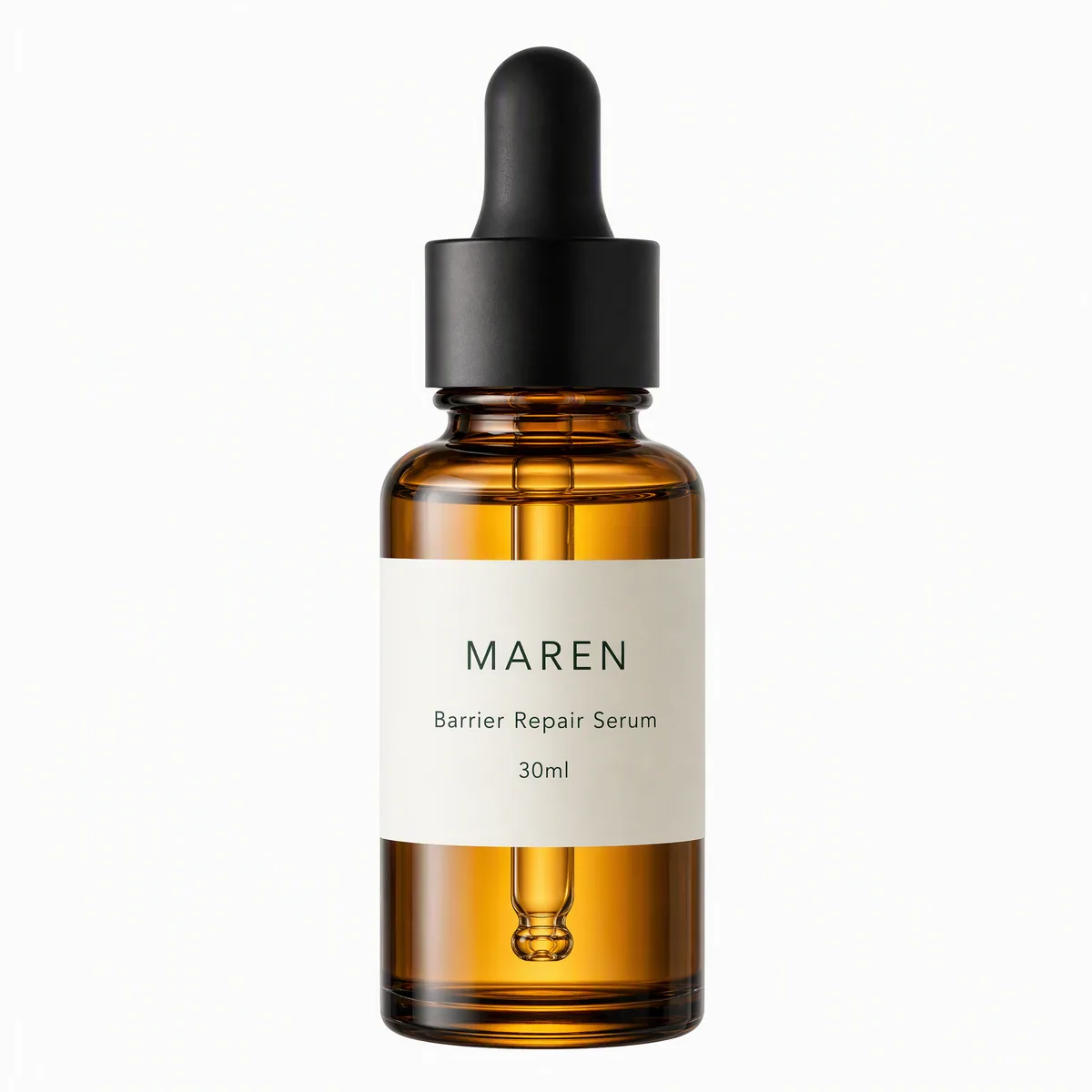
Upload one photo. Plain ground, label toward the lens, the product sharp. Then type one request per job.
Job 1: white cut-out
White-background hero of this serum, 1:1, product filling the frame, no props, no text.
No halo, and the product sits on the ground instead of floating, because the shadow is generated with it.
Job 2: a realistic scene
Same bottle on a marble counter by a window, morning light, one eucalyptus sprig.
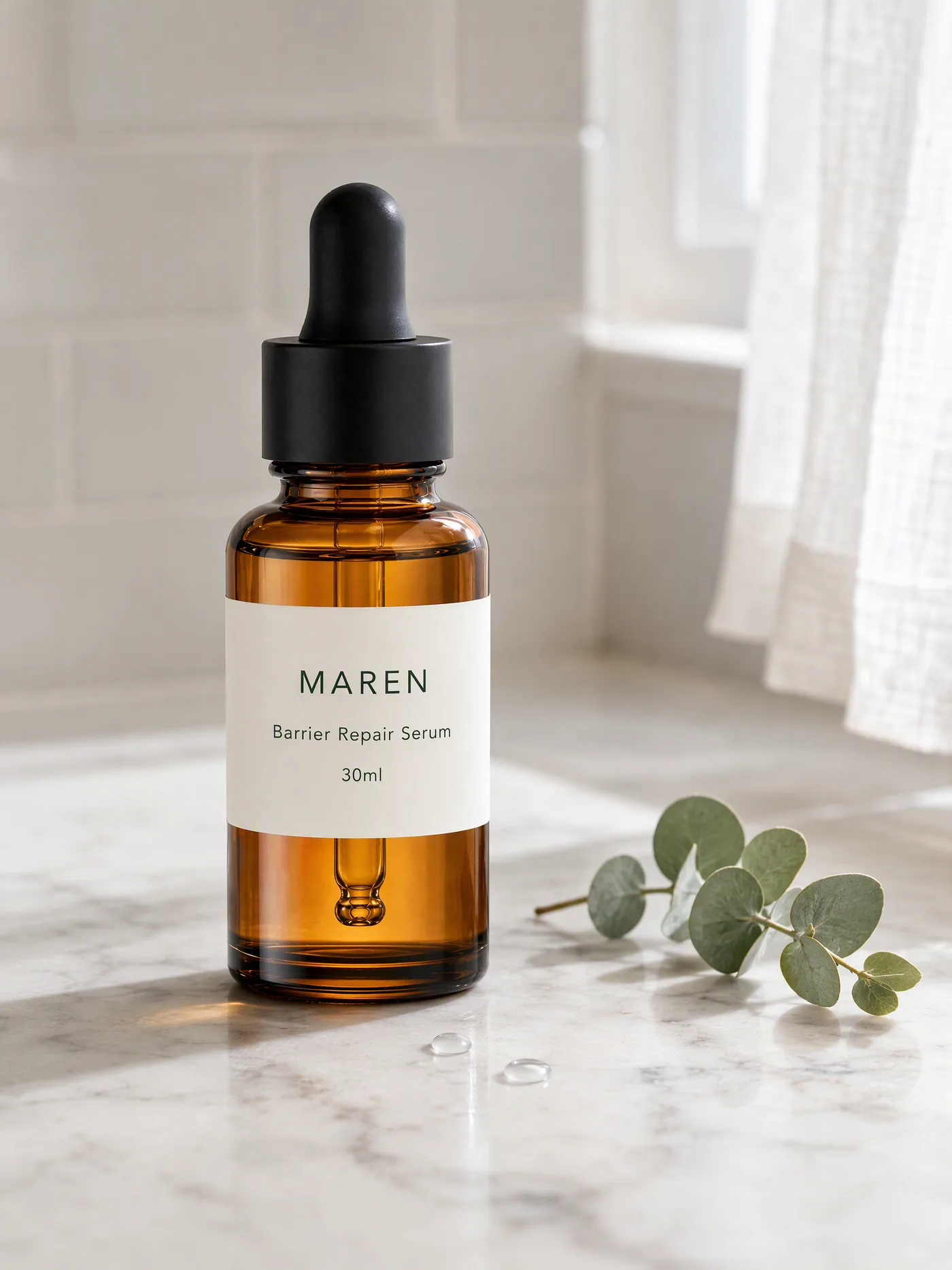
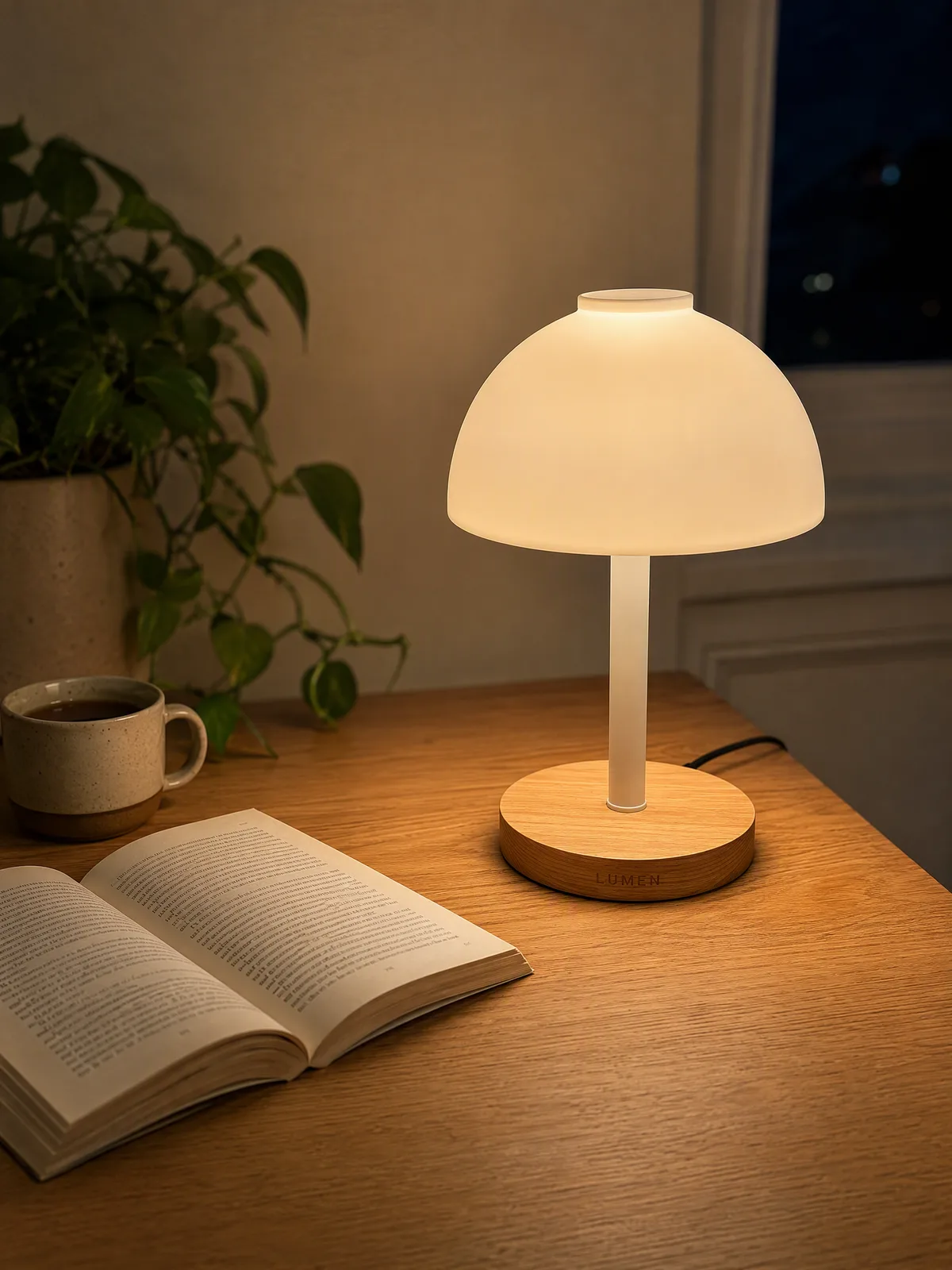
Say the surface, the time of day and one prop. The rest is the agent's call. The shape works for anything: a bag of dog treats on a kitchen counter, a lamp lit on a desk at night.
Job 3: a flat ad ground
4:5 static ad for this skillet on a solid warm ground, headline "Seasoned for life", one line of copy, product from the photo.
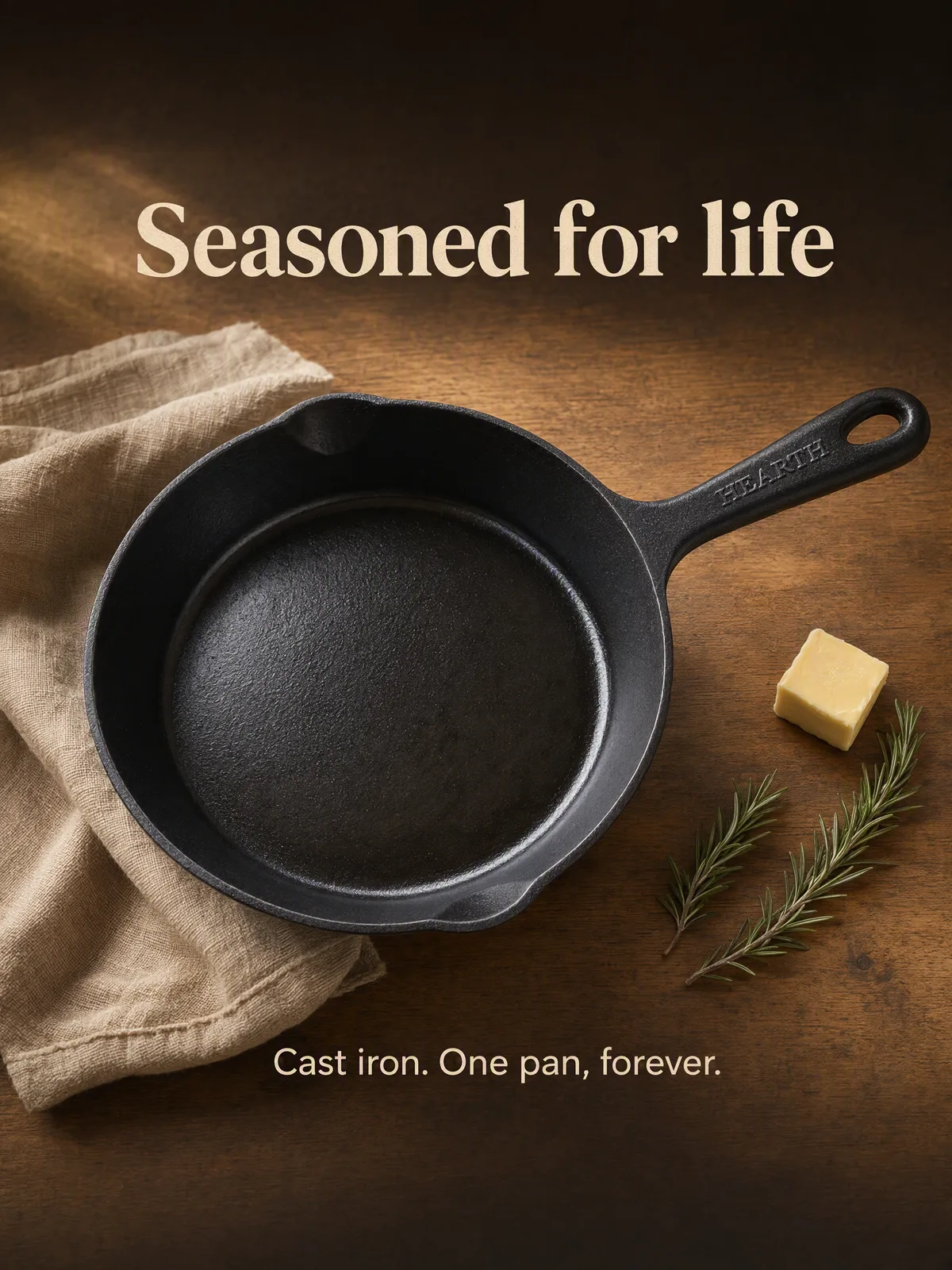
The ground is a single color, the product keeps its edge, and there is room left for the headline you named.
What to check
- Edges. Zoom on the outline. No fringe, no cut-off strap, no smeared dropper.
- Label. Every word matches the product in your hand.
- Shadow. It falls the way the scene's light says it should. A shadow from the left with a window on the right is the tell.
- Color. Compare the product against the source photo side by side. Scene light will shift it slightly; a different hue is a redo.
When you still want a real shoot
Two cases. Highly reflective or transparent products, glass, chrome, a clear bottle of liquid, pick up the environment in their surface, and a generated scene has to invent that reflection. It often looks right, but check it closely. And exact color matching for fabrics: if a buyer is choosing between "oat" and "sand", shoot the swatch under controlled light and use AI for the scene around it, not for the color itself.
For everything else, one photo and three sentences cover the three jobs.