 mikoo
mikooGuides / 2026-09-08
Shopify product photos without a photographer: a one-photo workflow
What a Shopify product page actually needs, which sizes to use, and how to get a hero, three scene shots and a detail from the one phone photo you already have.
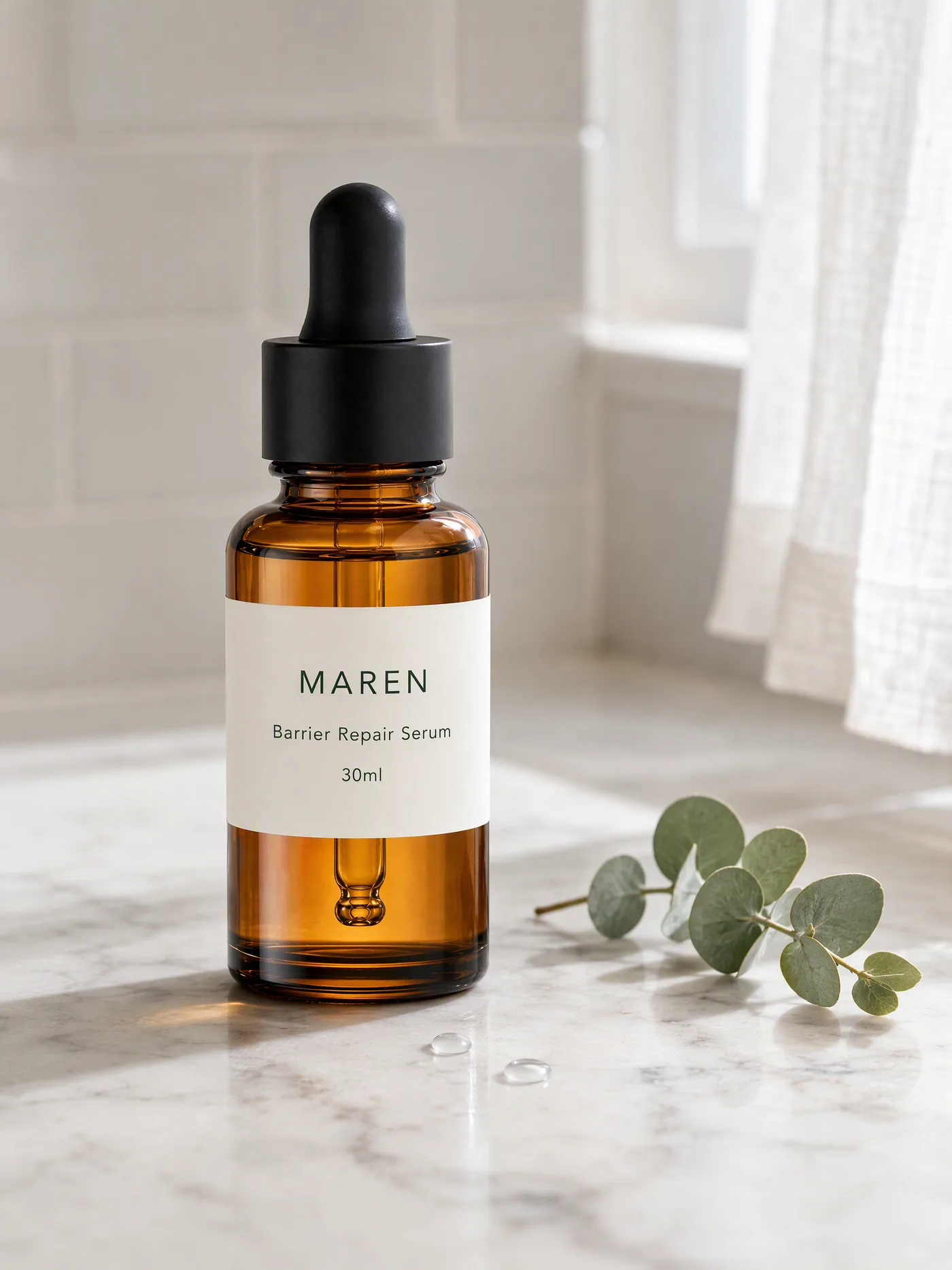
A Shopify product page does not need a shoot. It needs five or six images that agree with each other, at a size the theme will not blur. Here is what the page needs, what to start from, and what to type to get there.
What the page actually needs
Look at any product page that converts and the set is the same:
- One clean hero. The product on a plain ground, filling the frame. This is the thumbnail on the collection page and the first image on the product page.
- Two or three scene shots. The product where it lives: a counter, a desk, a hand. These answer "how big is it" and "does it fit my life".
- One detail. A texture, a label, a cap, a stitch. The thing a buyer would pick up and turn over in a shop.
- Optionally a short clip. Eight seconds is enough. Most themes autoplay it in the gallery.
Shopify recommends square images at 2048 by 2048 pixels; you can upload up to 5000 by 5000 and zoom stops working below 800. Keep the whole set at one ratio, square or 4:5, so the gallery does not jump between shapes. The ratio matters more than people expect: a mixed gallery reads as a mixed-quality product.
What to start from
One phone photo. Ours is a fictional serum, MAREN, on a plain surface with the label facing the camera. That is the only asset in this whole page.
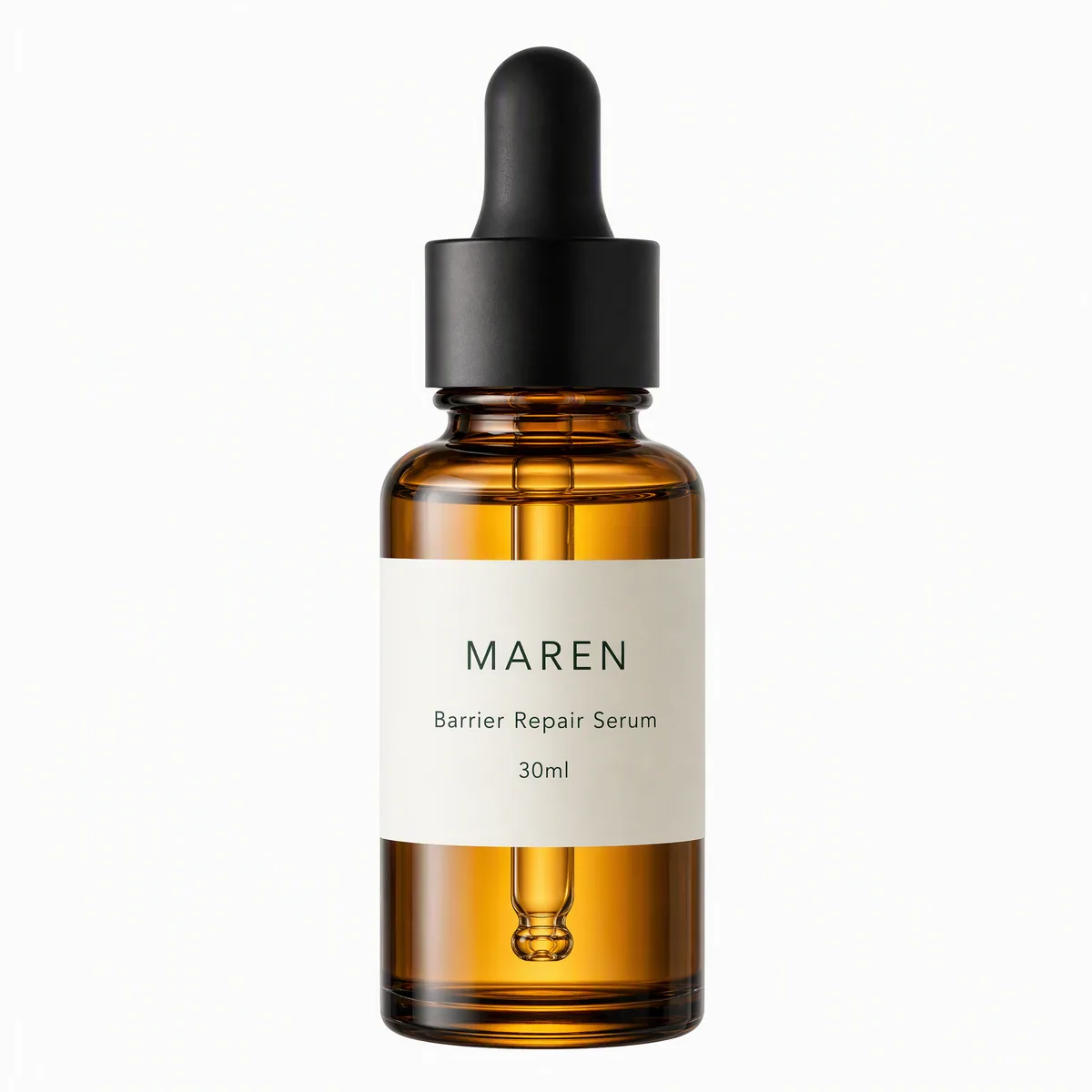
If your photo has a busy background or a crooked label, take another one. Thirty seconds of care here saves every downstream image.
The hero
White-background hero of this serum, 1:1, product filling the frame, no props, no text.
Name the ground, the ratio and what not to include. The result is a marketplace-grade hero, which also happens to be the right first image for Shopify.
The scenes
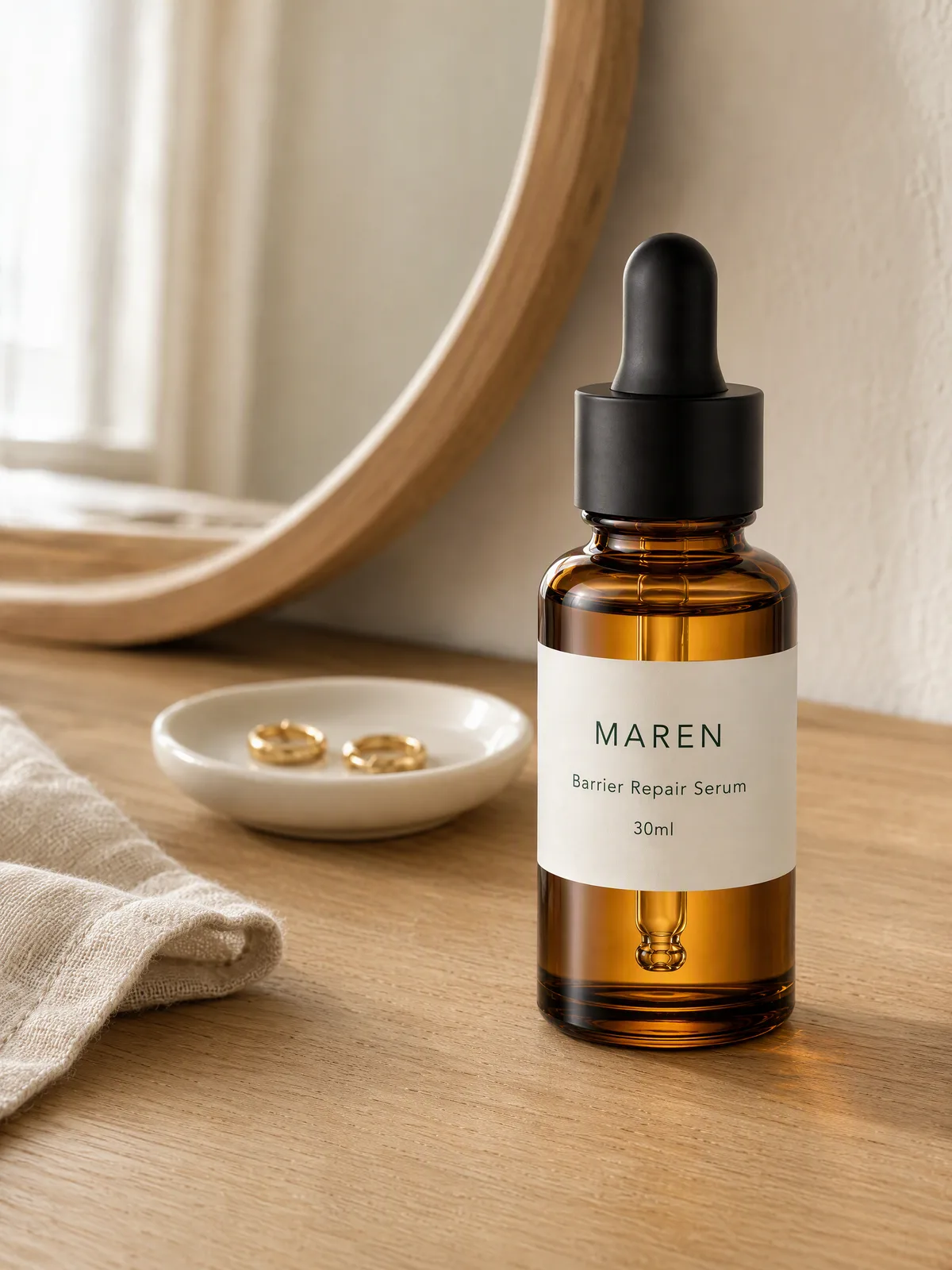
Same bottle on a marble counter by a window, morning light, one eucalyptus sprig. Then one on a wooden vanity with a mirror.
Two sentences, two scenes. Say the surface, the time of day and one prop. The agent picks lighting, distance and how the label faces the lens. The bottle is placed from your photo, not repainted, so the label reads in both.
The same request for other categories
The request shape does not change with the product. Only the nouns do.
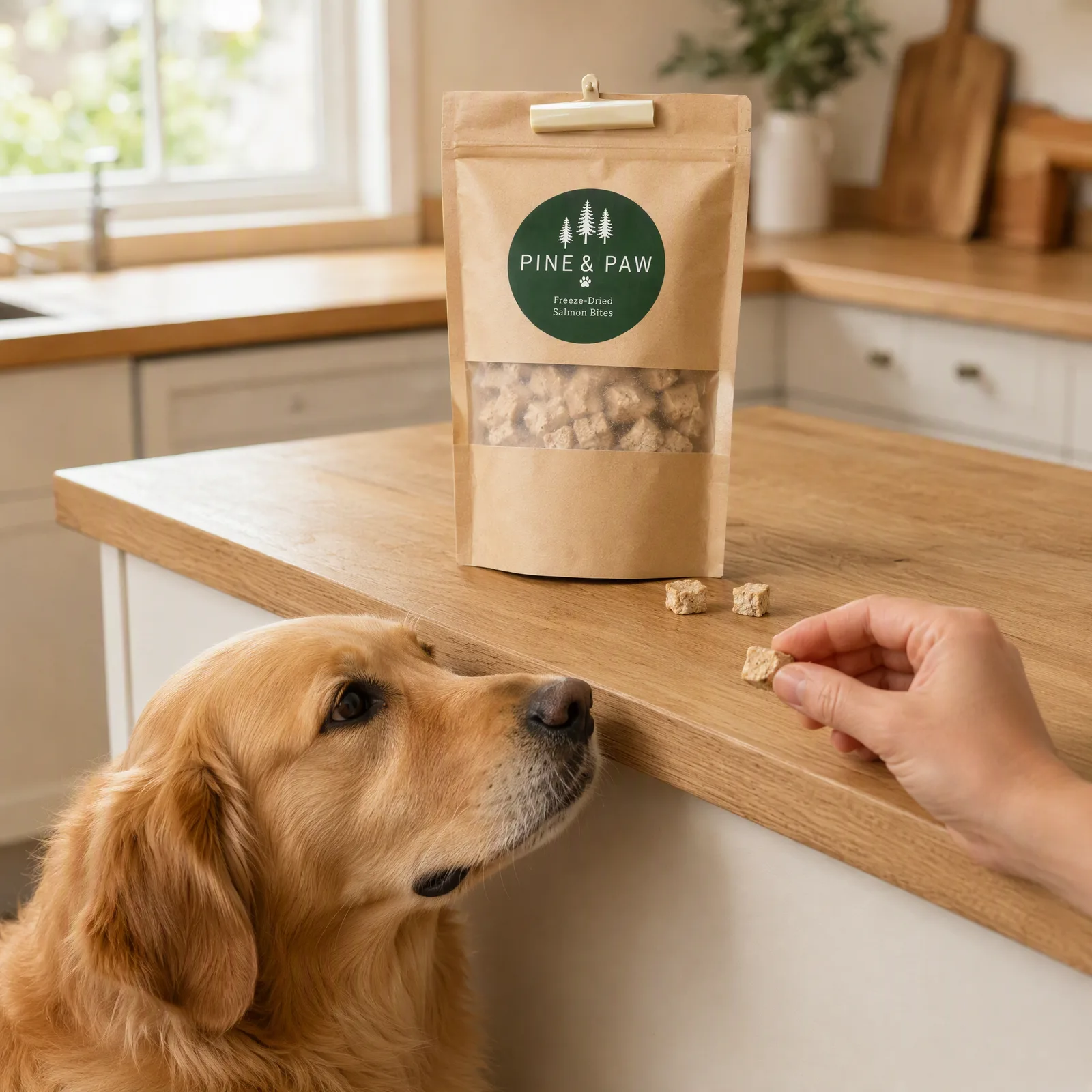
A bag of dog treats: "one on the kitchen counter, my hand offering a piece with the golden waiting".
A desk lamp: "a desk at night with the lamp on, warm".
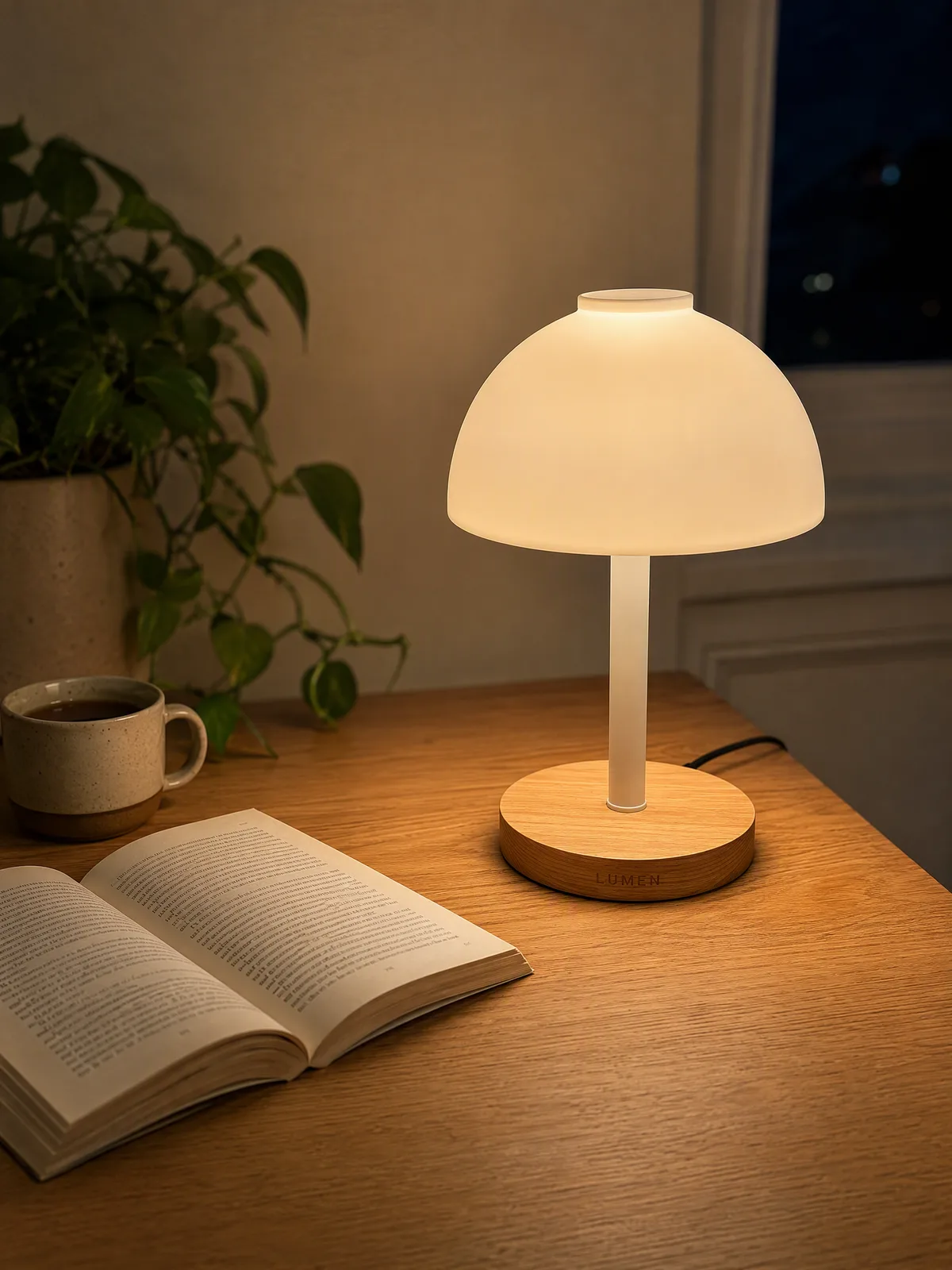
Skincare, pet food, lighting: the same two-sentence request produced a scene that fits each one, because the agent reads the category from the photo.
What to check before uploading
- Label legible. Zoom in. Every word on the label should be the word on your product.
- Product unchanged. Cap shape, bottle proportions, color. Compare against the source photo, not against memory.
- Consistent light. The hero, scenes and detail should feel like one day, not three stock libraries. If one scene is much warmer than the rest, ask for it again with the light named.
- One ratio. Export everything at the same ratio and at 2048 on the long side or more.
Keep one session per product
Do all of a product's images in one session. The agent holds the product lock across the conversation, so the second scene, the detail and the clip all come from the same bottle as the hero without re-uploading. Start a new product, start a new session. That one habit is most of what keeps a gallery looking like it was shot together.
Sources: Shopify image size guidelines, Shopify Help Center: product media types.